Forecasting
Use to forecast future changes to your dataset.
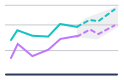
Use the Forecasting chart when you want to forecast future changes to your dataset. A forecasting chart is a line chart that displays:
Actual historical values
Fitted historical values (calculated by Varicent ELT)
Predicted future values (calculated by Varicent ELT)
Shaded confidence interval
Tip
You can use this visualization with any tool in Varicent ELT.
Input
The Forecasting chart requires date, numeric, and boolean type columns.
Configuration
Use the following configuration options to configure the Forecasting chart.
Note
The Configuring the Forecasting chart gives configuration options through the Pipe module. If you have charts already created, you can access your charts through your Dashboards.
Go to the Pipes module from the side navigation bar.
From the Pipes tab, click an existing pipe to open, or create a new pipe. To create a new pipe, read the Creating a pipe documentation.
In the Pipe builder, add a data source to your pipe. For more information on adding a data source, see the Data Input tool.
Add tools to build out your pipe. For more information about adding tools to your pipe, see the Using the Pipe builder canvas documentation.
Create a chart from your pipe by clicking Charts on the canvas toolbar.
Click Create Chart.
The chart page opens.
From the configuration pane, go to the Setup tab, and select the tool that you want to create a chart for.
Note
Whatever tool you select in your pipe when you add the chart is selected by default.
Under Chart type, start typing Forecasting to filter the list, and then click the Forecasting graphic to select it.
Under the X axis, select a column. The X axis populates the data along the chart's horizontal axis.
Under Historical values, select a numerical column to use.
Under Forecasted values, select a numerical column to use.
Under Is forecast, select a boolean column to use.
Under Lower range, select a numerical column to use.
Under Upper range, select a numerical column to use.
Expand the Advanced field, click Show to select either Preview or Last built:
Preview displays the first 100 rows of your data from your last build.
Last build displays the first 1000 rows of your entire dataset from your last build.
Under Analyze by, Select none, one or more date columns to analyze the forecast by.
After you select the date columns to use, two fields named Forecast 1 and Forecast 2 appear. Select the time from the drop-down list. Ensure that the dates are unique.
Click the Customize tab to add custom styling to your chart.
Under Chart and axis titles, select the following to add titles to your charts. To update the title from "Untitled" to something meaningful, click on the title to edit.
Include the chart title
Include chart subtitle
Include the horizontal axis title
Under Horizontal axis label angle, select the degree from the drop-down list of angles for the horizontal axis label. This option is useful if you have longer labels, as angling the text can free up more space in your chart.
Click the Include vertical axis title checkbox to add the vertical axis title.
Under Vertical axis label angle, select the degree from the drop-down list of angles for the vertical axis label.
Under Left margin, enter the padding for the left margin or click the arrows to increase or decrease the number.
Under Right margin, enter the padding for the right margin or click the arrows to increase or decrease the number.
Under Top margin, enter the padding for the left margin or click the arrows to increase or decrease the number.
Under Bottom margin, enter the padding for the left margin or click the arrows to increase or decrease the number.
Under Colour, expand the colour field, click on the column colour, and select a new colour.
Under Legend, select the Include legend checkbox to add a legend to your chart.
Click Return to pipe to go back to your pipe. To view your chart or create a dashboard for your charts, read the Dashboards documentation.